Your first PromptBook
A ten-minute walk from an empty window to a note you run without touching the mouse. PromptBook needs macOS 13 or later.
Install it
Download the disk image, or install from the terminal you already have open:
curl -fsSL https://promptbook.sh/install | sh   # or
brew install --cask promptbook-sh/tap/promptbook
PromptBook checks for a newer release each time it opens, and about once a day if you leave it open. It only interrupts when there is one, and never twice about the same version. The toggle and a manual check live in Settings (⌘,).
Meet the window
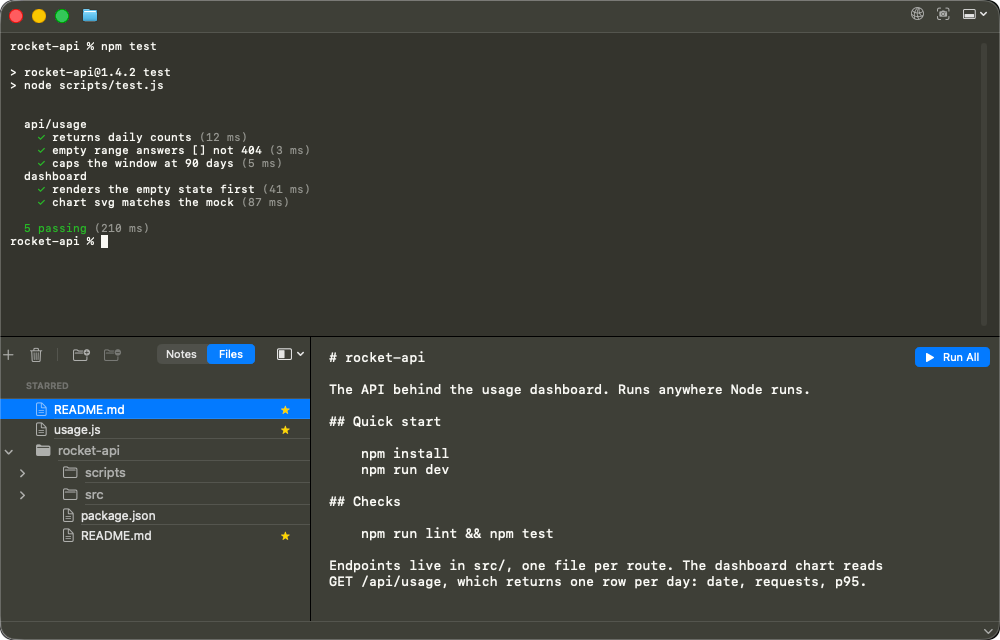
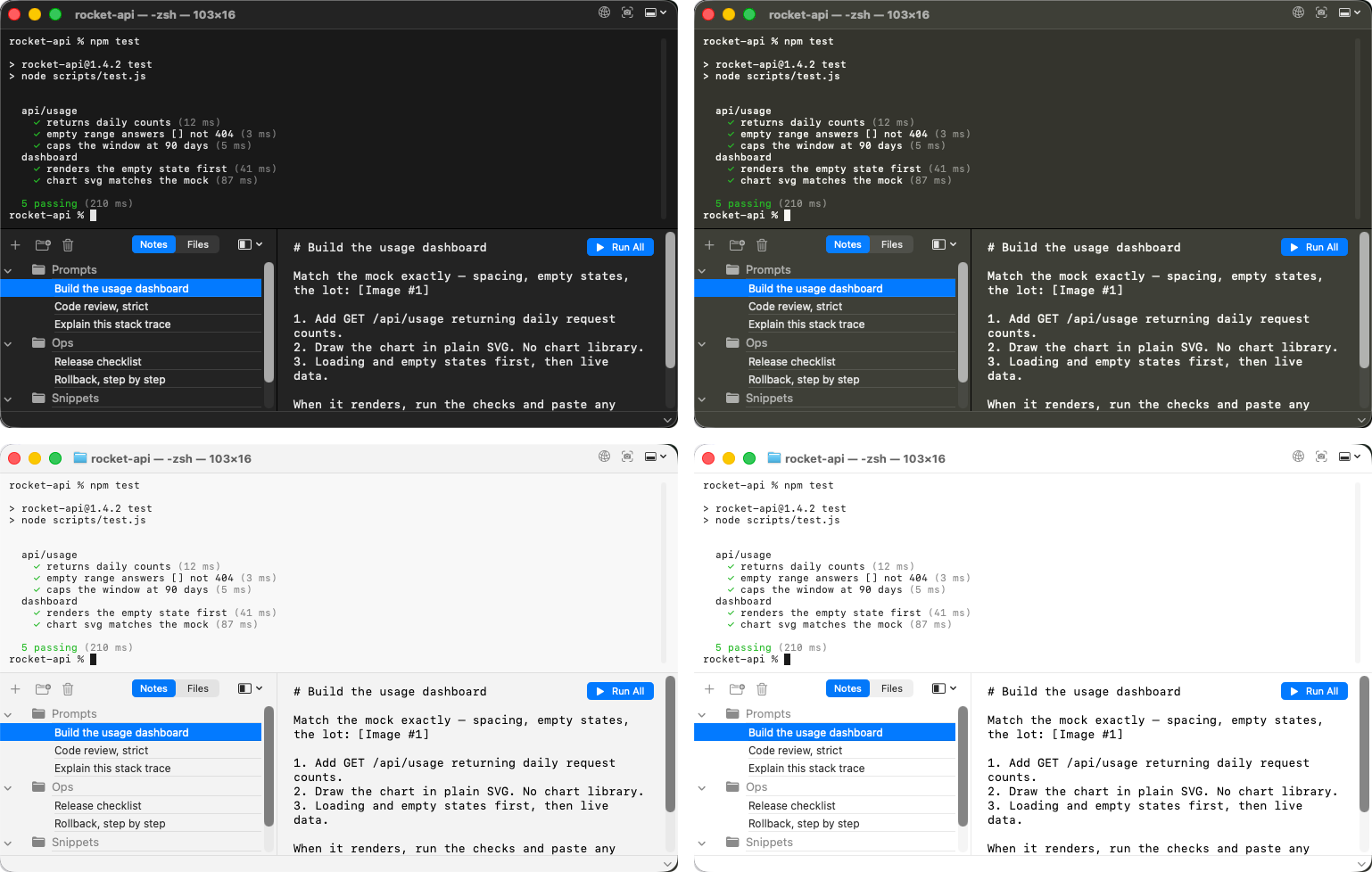
One window holds a real terminal and a notebook. The terminal is an actual PTY: your shell, your dotfiles, your prompt, nothing emulated away.
The notebook docks below, left, or right of the terminal; the title-bar position menu moves it, minimizes it, or hides it altogether. Every window keeps its own notes and its own dock position, and both are restored the next time you open it.
Write a note
Press ⇧⌘N for a new note. The first line becomes its title in the list, so lead with something you will recognise later.
A note is a scratchpad for the prompts and commands you keep retyping: the long ffmpeg invocation, the deploy checklist, the prompt that finally got Claude to write the migration correctly.
Run it in place
Press ⌘↩, or hit the Run button. PromptBook sends the selected text, or the whole note when nothing is selected, to the terminal and presses Return for you. No copy, no paste, no switching windows.
Edit like an editor
The notebook is a real multi-selection editor, not a text box. ⌘↑ and ⌘↓ move lines, ⌘D adds the next matching occurrence to the selection, ⇧⌘D duplicates, and ⌘K deletes the current lines.
Option-drag gives you a rectangular selection, and a middle-button drag drops multiple carets. The full list is in the shortcut guide below.
Put images in your prompts
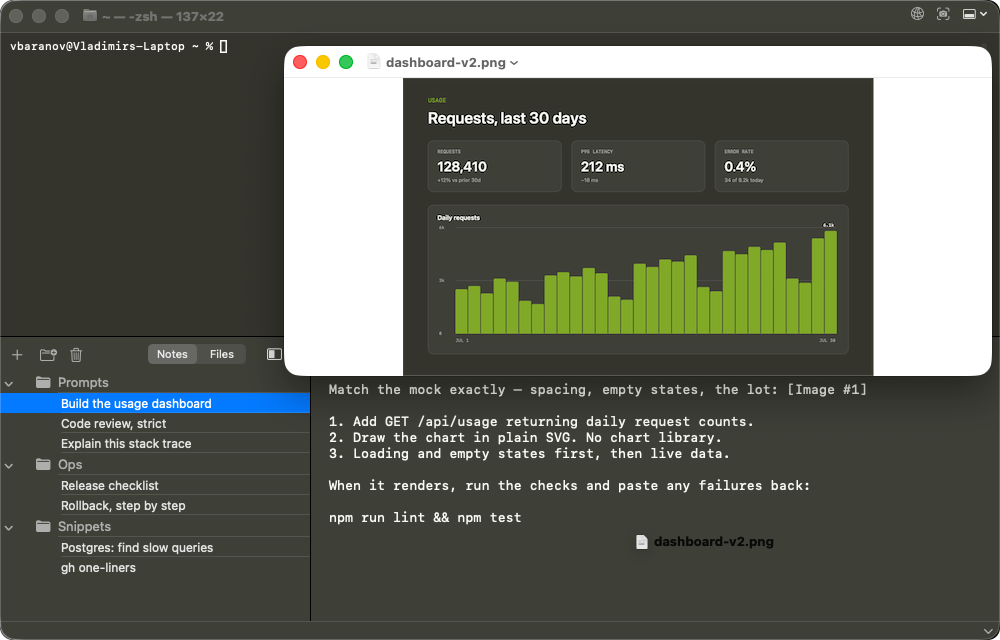
Drag an image into a note and it becomes a persistent [Image #N] attachment. Click the token for a thumbnail, click the thumbnail for full-size Quick Look. The image is filed under ~/Library/Application Support/Promptbook/Attachments, so the note still works tomorrow.
Drop an image straight onto the terminal, or paste one with ⌘V, and it attaches to an active Codex or Claude composer. Copying a token from a note into the terminal carries the real image with it, not just the label.
The title-bar camera button captures a window or a screen area and attaches the shot to the focused terminal tab or the selected note. It needs Screen Recording permission, which macOS only reads at launch. Grant it, then quit and reopen PromptBook.
Work in tabs
⌘T opens a terminal tab, ⇧⌘] and ⇧⌘[ move between them, and ⌘N opens a whole new PromptBook window with its own notebook. Zoom the focused pane with ⌘+ and ⌘−; the terminal and the note editor scale independently.
Keep your notes safe
⌥⌘B backs up every note in every window to a file you choose; Restore Notes… in the PromptBook menu brings them back. Worth doing before you reinstall or move machines.
Reach it from anywhere (optional)
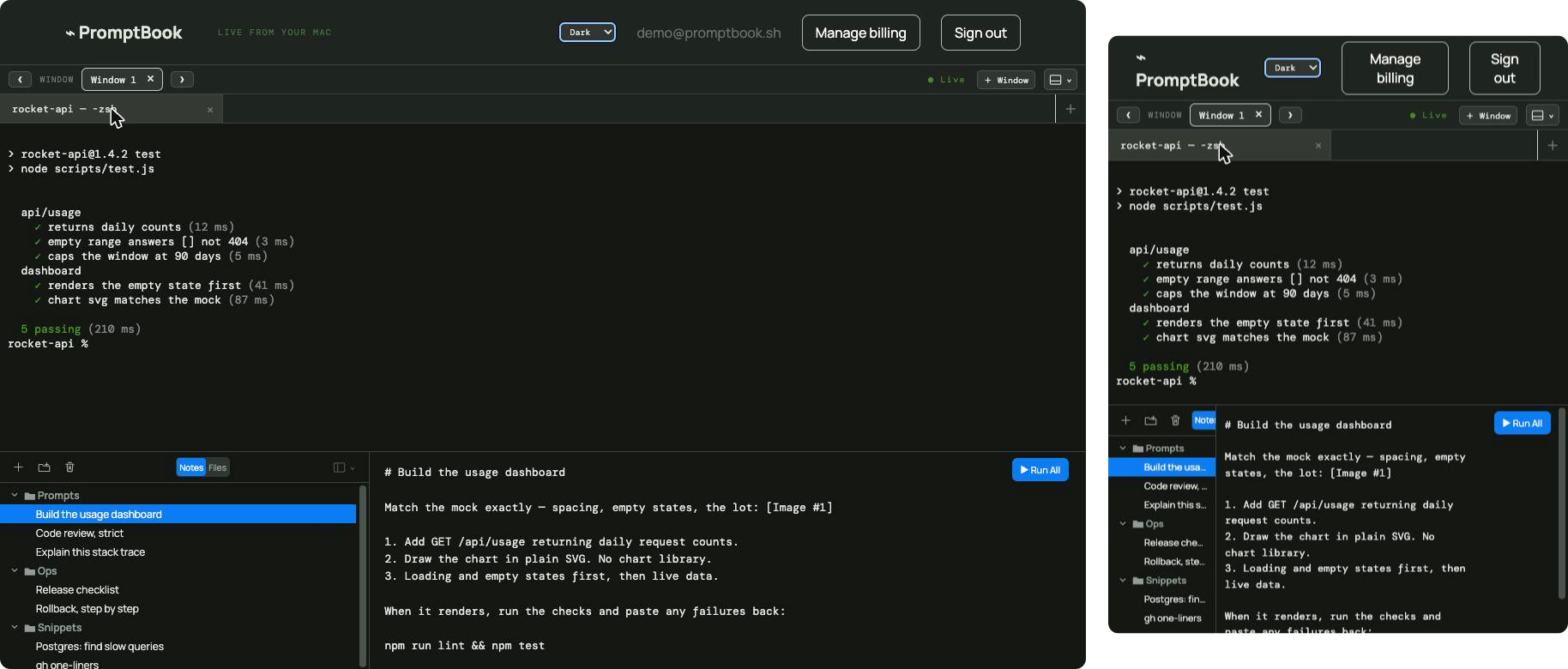
The title-bar network button opens account and sharing controls. Sharing is off by default and only switches on after you sign in. With it on, every terminal in every window is reachable from the browser or the iOS app, with the same notebook alongside it.
Your Mac keeps running and doing the work; the web and your phone are looking over its shoulder. That part is PromptBook Remote, and it comes with every business seat.